This first module establishes the data and Azure resources for the Backer Concierge. No agent code or hosted deployment is needed yet.
By the end, you will have:
- A catalog export with explicit grounding limits.
- A Foundry project and a model deployment chosen for the feature requirements.
- A Canvas-validated deployment and a simple catalog-bounded model smoke check.
Scenario
Tailspin Toys backers can filter games by category and publisher, but questions such as Which games would suit someone who loves Git puns? don’t have dropdown answers. A Backer Concierge should recommend only games in the Tailspin catalog and never invent games, publishers, ratings, funding totals, backer counts, prices, player counts, play times, or release dates. A reliable catalog and a suitable model are the foundation for those answers.
Prepare your tools and issue session
The setup connects the GitHub Copilot app to Azure while keeping all feature work together.
-
Confirm that you have an Azure subscription. If you need one, the available options include a free Azure subscription with $200 credit or Azure for Students with $100 credit.
-
Install the Azure CLI for your OS, then verify the installation using
az version. -
Install the Azure Developer CLI, then verify that version 1.27.1 or later is installed using
azd version. -
Open the GitHub Copilot app, open Customize, then select Plugins. Search for
microsoft-foundryand select Install for the Microsoft Foundry plugin, which bundles Canvas and the Foundry skills.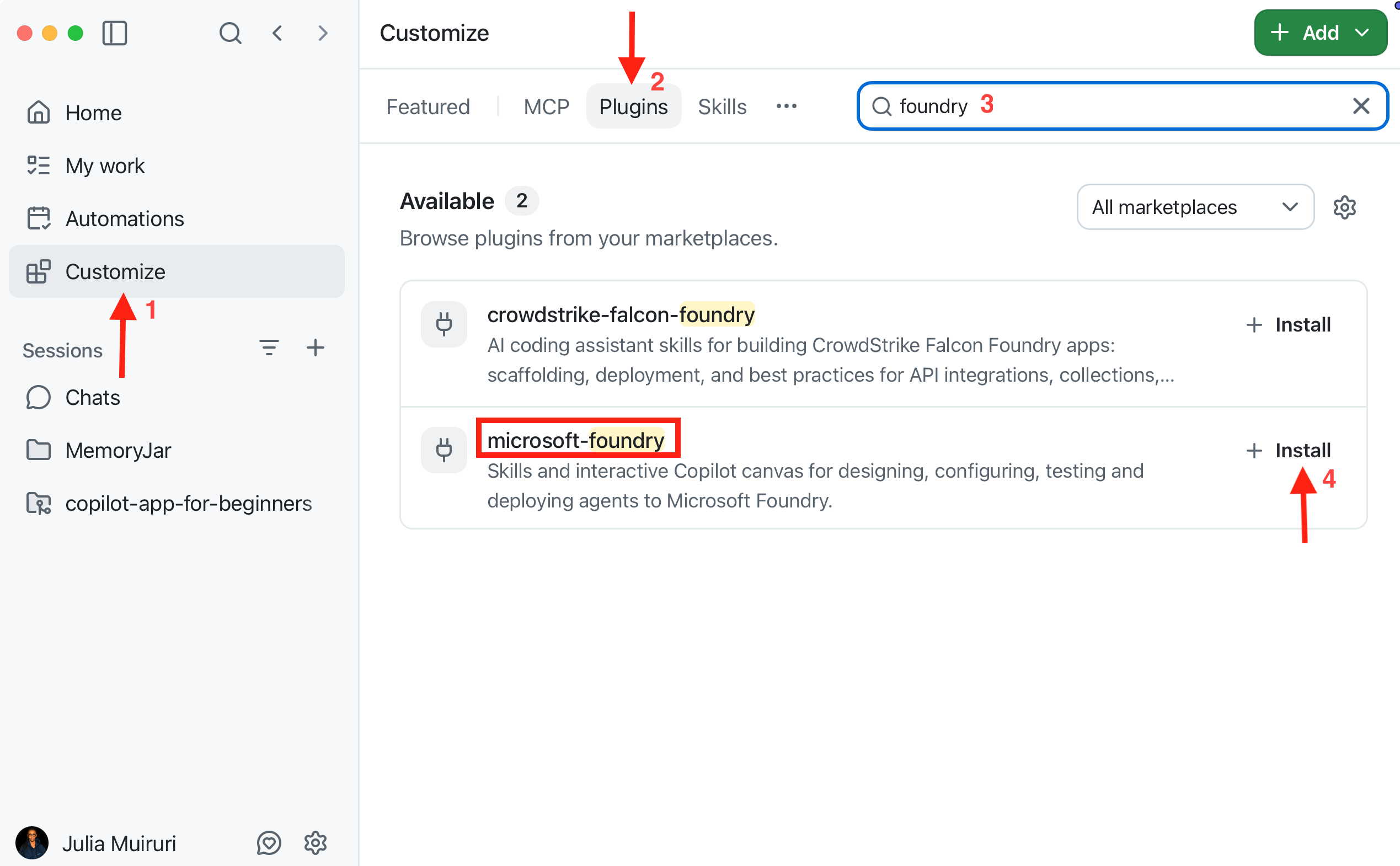
-
In Customize, select Plugins, search for
azureor select it from the Featured list, then select Install for the Azure plugin. -
Select Issues in the sidebar, then find and open the issue titled Add a Backer Concierge assistant for catalog questions in your Tailspin Toys repository. Select New session to start an issue-linked session in a new worktree. Keep this repository, worktree branch, and issue session for all three modules.
-
Type
/microsoft-foundry, then/azureto confirm both skills are installed and available; don’t send any prompts yet. If a plugin does not appear immediately, restart the app, return to this same issue session, and check again.
Generate the catalog export
The sample repository includes an export script that gives the agent a file it can read.
-
In this issue-linked worktree session, replace the default
/fix-issueprompt in the prompt box with:Install the project dependencies, seed the database, then run the existing db:export script. Show me the command output and summarize the shape and grounding limits of db/catalog.json. -
Review the command output. Copilot should run the equivalent of:
npm install
npm run db:setup
npm run db:export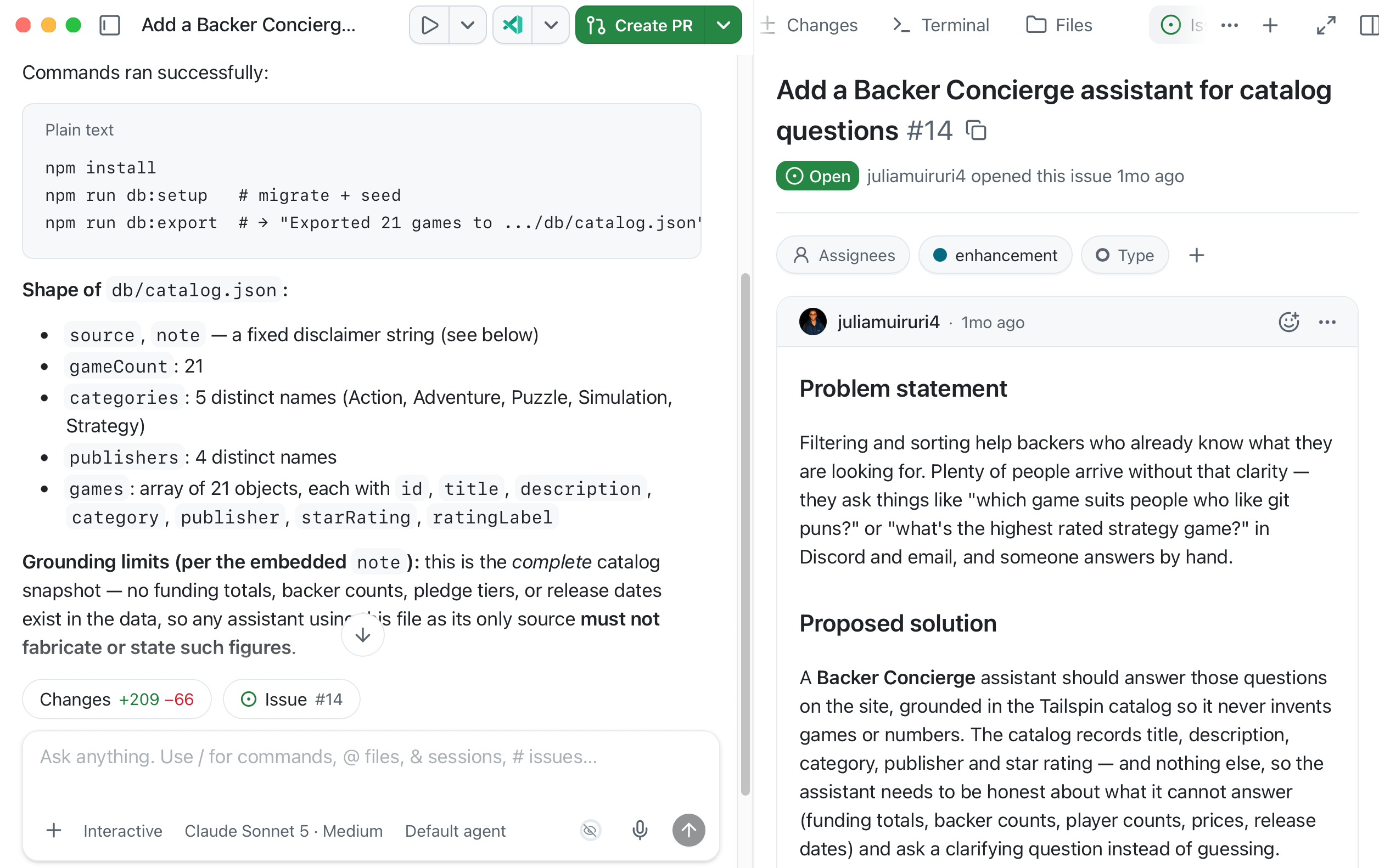
-
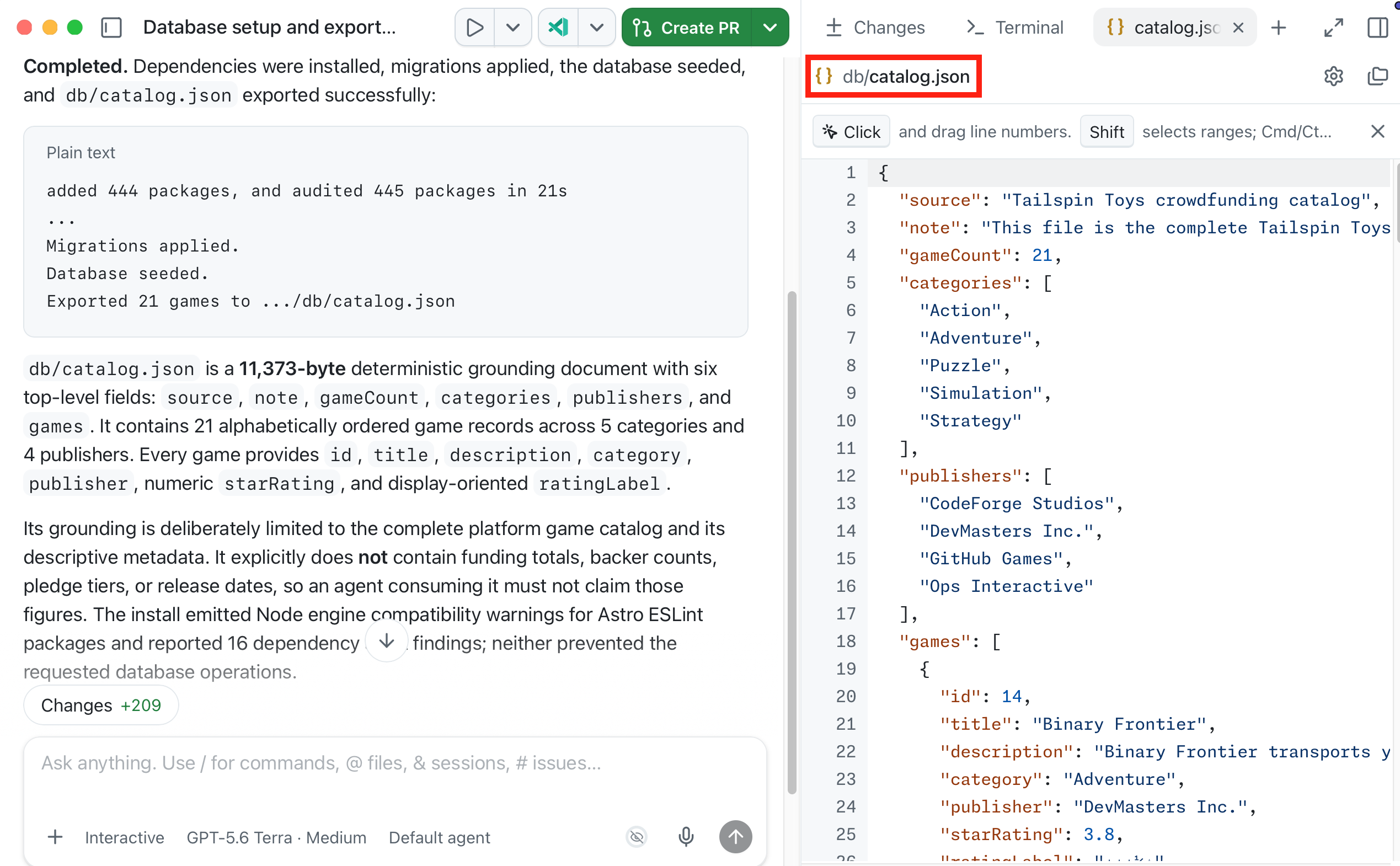
Open
db/catalog.jsonand confirm it contains 21 games with a title, description, category, publisher, and star rating. Check itsnotefield: the catalog doesn’t contain funding totals, backer counts, pledge tiers, or release dates. Treat missing prices, player counts, and play times as unavailable too, rather than filling gaps from outside knowledge. If the export fails or differs, ask Copilot to investigate and rerun it before continuing.
Set up a Foundry project and model
Creating the project and deployment in chat first means Canvas connects only to resources that already exist.
-
Select +, select Terminal, and sign in to Azure:
az login -
Check the selected subscription and list its resource groups:
az account show --output table
az group list --output table
If the subscription is incorrect, run
az account set --subscription <subscription-id>, then repeat both commands.If
rg-tailspin-toysappears, inspect its resources:az resource list --resource-group rg-tailspin-toys --output tableIf the group contains unrelated or shared resources, stop and choose a dedicated name before using the following prompt. Replace the example names in every later prompt and command with the names you approve.
-
In the same issue session, enter:
Use the Microsoft Foundry skill to create a resource group named rg-tailspin-toys and a Foundry project named tailspin-toys.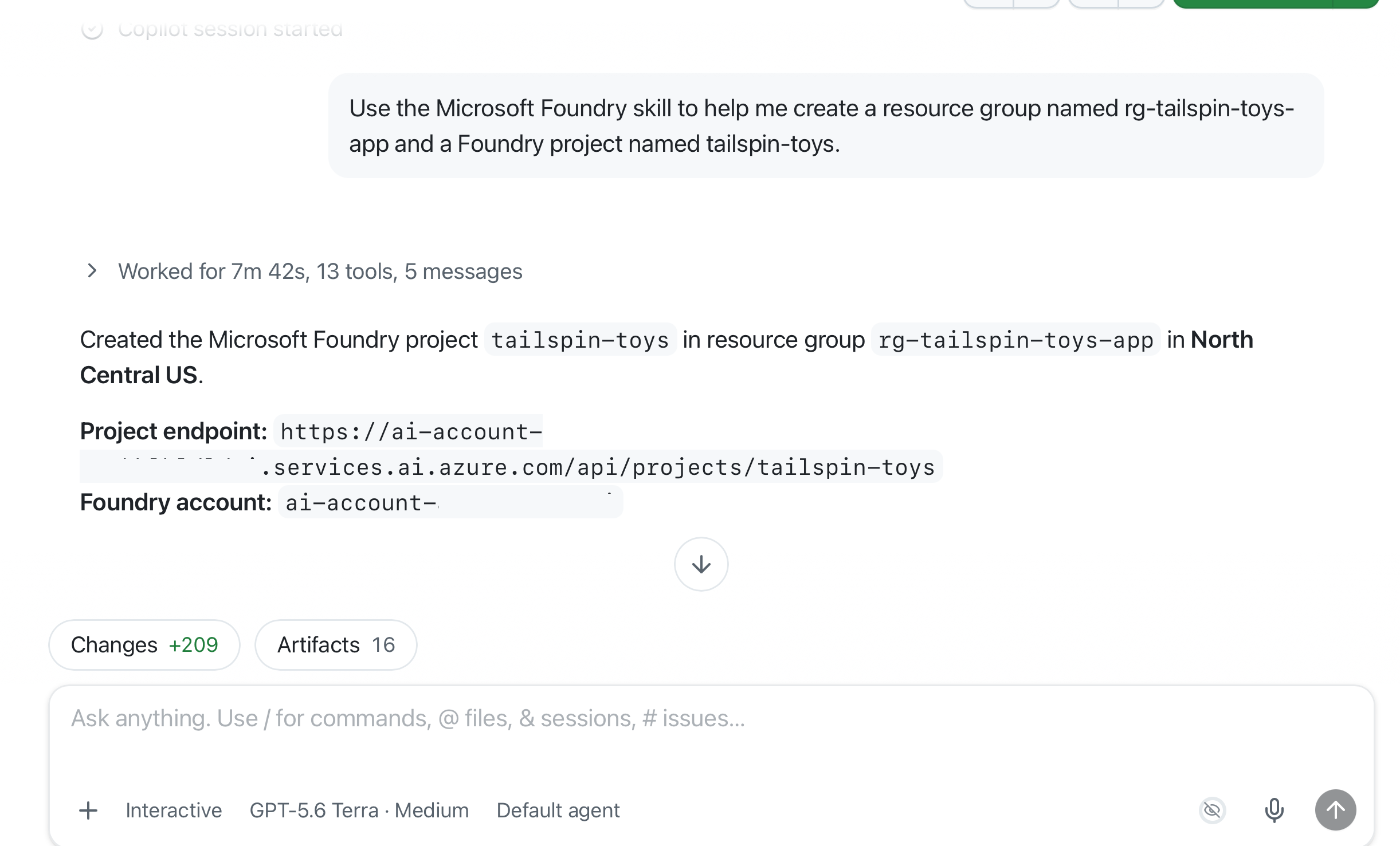
-
Ask Copilot to recommend a model. The issue’s acceptance criteria are already in context because the session started from the issue:
Use the Microsoft Foundry skill to recommend two or three current chat models in the tailspin-toys project that meet this issue's acceptance criteria. Explain the tradeoffs and wait for me to choose. -
Confirm Copilot loads the
microsoft-foundryskill, then choose an available model based on its tradeoffs. The Microsoft Foundry hosted-agent quickstart currently usesgpt-5.4-mini, but availability and quota vary by region.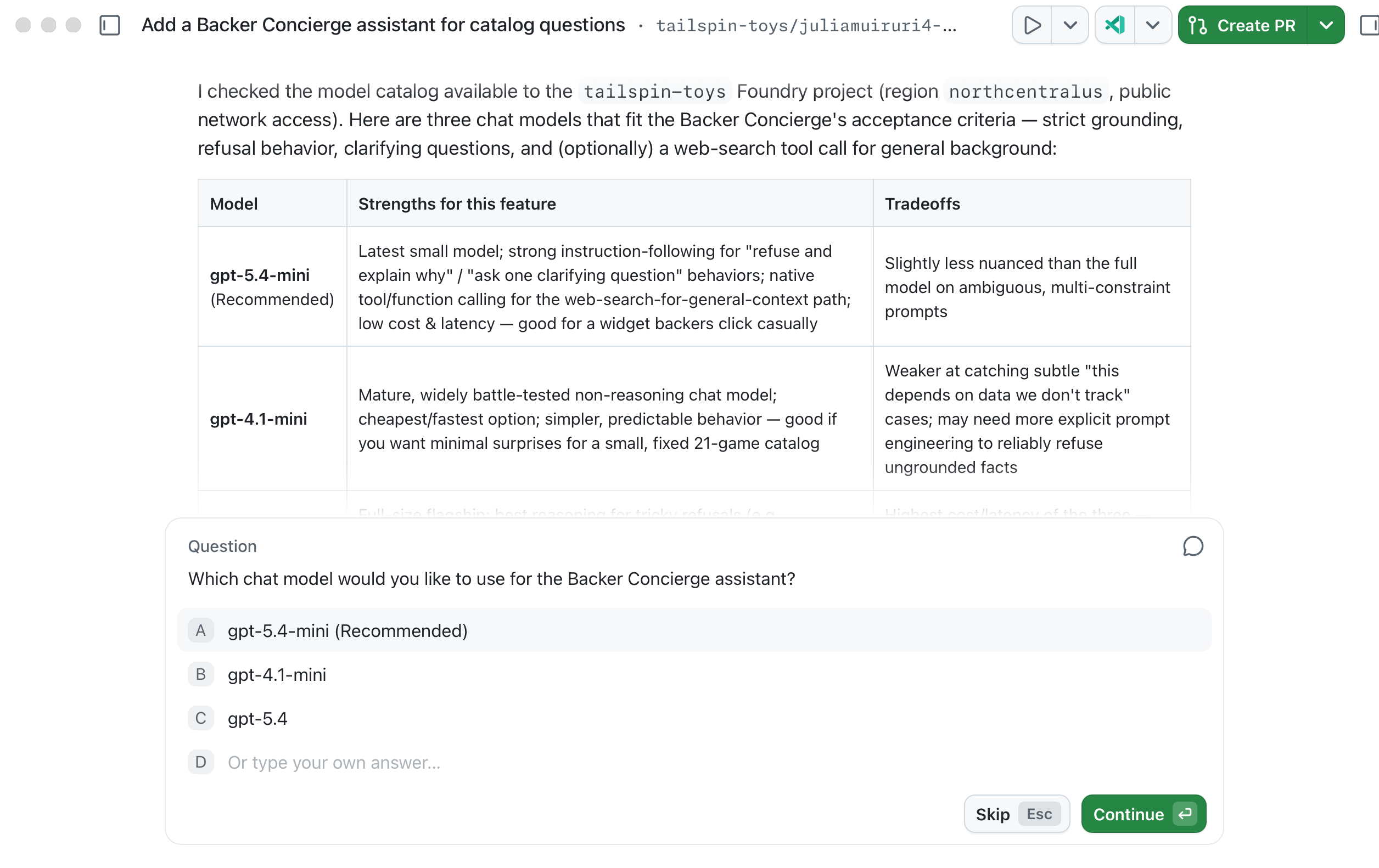
-
Ask Copilot to deploy your selection, reviewing the target project and cost before approval:
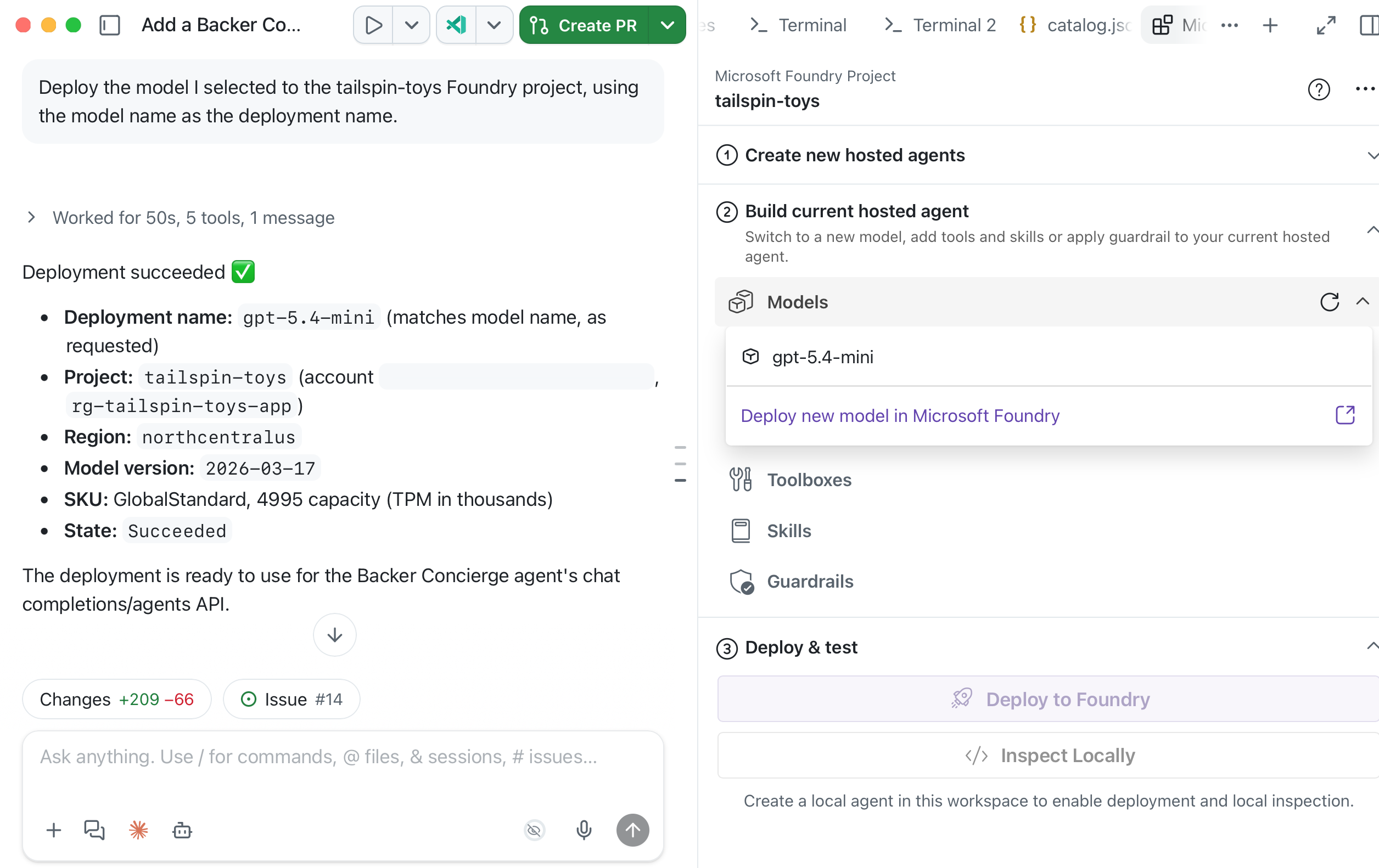
Deploy the model I selected to the tailspin-toys Foundry project, using the model name as the deployment name.
Validate and smoke-test the model in Canvas
This check verifies the project and model before any agent code exists. A model smoke check is not a substitute for the hosted agent’s grounding tests in module 2.
-
Select +, then Canvas, then Microsoft Foundry (Preview).
-
Open the More options menu in the top-right corner of Canvas, then select Sign in.
-
Select the tailspin-toys Foundry project. Expand Models and confirm your deployment appears with the expected name and status.
-
In the same session, enter:
Use the Microsoft Foundry skill to test my deployed model directly in the tailspin-toys project without creating an agent. Ground it with content from @db/catalog.json and ask: "I love puzzle games about tracking down bugs. What should I back, and how much funding has it raised?" Show me the response and useful metadata such as tokens used and response time, only if available. Use my existing Azure sign-in. Do not display credentials, change files, or create resources. -
Review the response. It should recommend only a real game from
db/catalog.json, use the correct title, publisher, and rating, and explain that funding information is unavailable. If the model invents a game, catalog details, or a funding total, compare another recommended model before continuing.
Checkpoint and next steps
You prepared the Azure tools, exported the catalog, and tested a deployed model against the Backer Concierge grounding rules. The checkpoint for this module is a model that recommends real catalog games without inventing missing information.
Next, you’ll use the same Tailspin Toys repository, worktree branch, issue-linked session, Foundry project, and selected model deployment to build and deploy the agent. If you’re stopping here, clean up your Azure resources to avoid ongoing costs.